Sigma migration

Migrate from Sigma in 5 minutes with all your data

Bring customers, resellers, credits, plans and coupons from Sigma with a preview summary, live progress and undo.

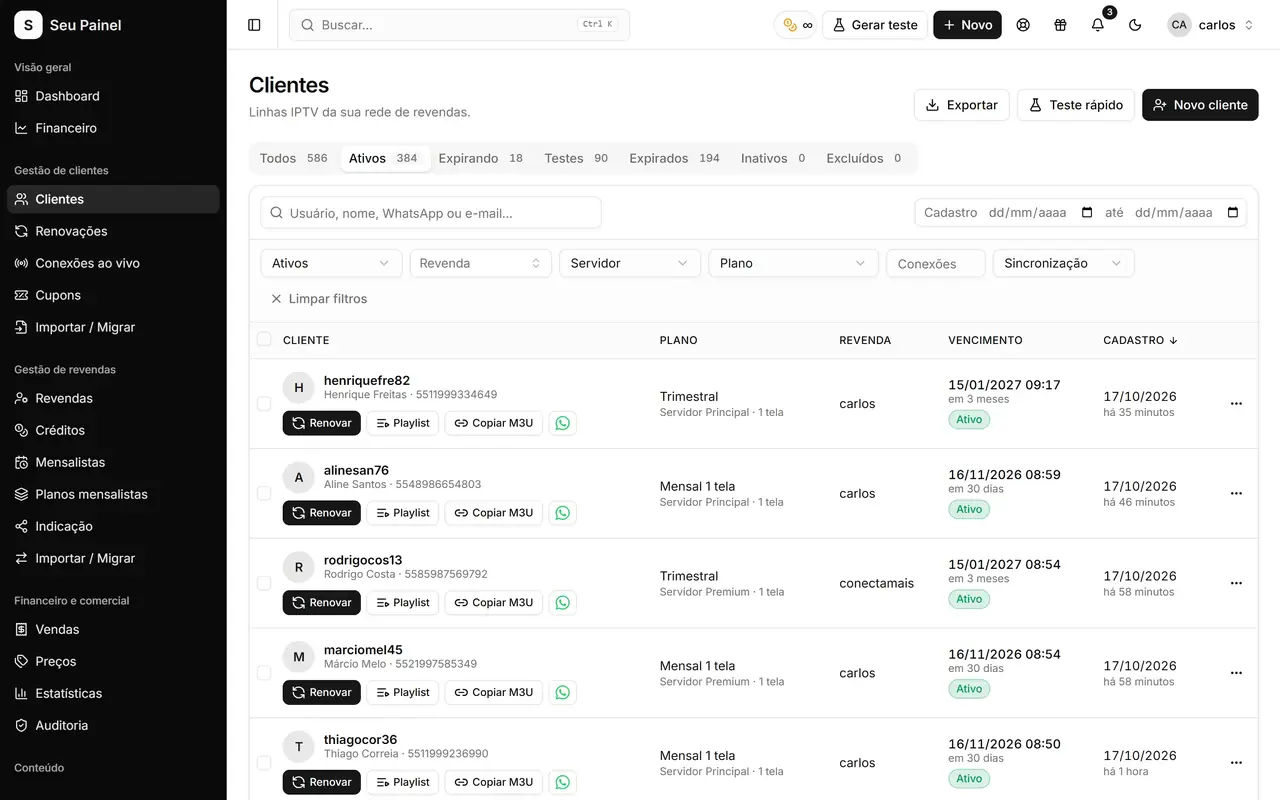
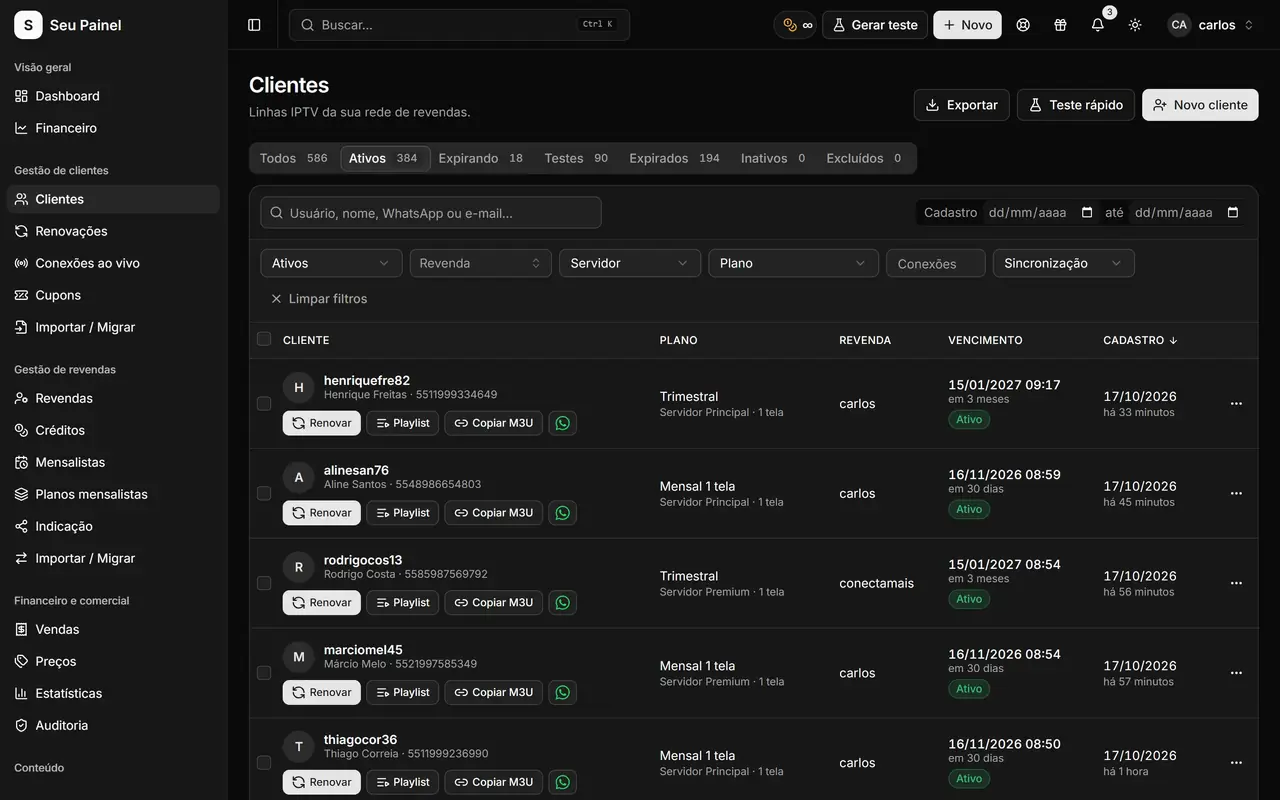
Painel Blend screen: customer list with search, filters, server and expiration datePainel Blend screen: customer list with search, filters, server and expiration date

Highlights

All your data

Customers, deleted customers, resellers and sub-resellers, credit transactions, plans, credit packages, membership plans, coupons and contacts.

Read-only export

The script runs in your browser while logged in to Sigma, and only reads. Nothing changes in your current panel.

Summary before importing

See how many customers, resellers, transactions and plans came over, with per-server counts, before you confirm.

Mapped servers

Choose which Painel Blend server each Sigma server goes to. Customers that already exist there are linked, not duplicated.

Live progress

Follow the import with a percentage and real-time log, never left in the dark.

Undo is possible

Not what you expected? Undo the import and the panel goes back to how it was, without touching the server.

How it works

  1. 01

    Export from Sigma

    Copy the helper script, run it in the Sigma tab and download the export file.

  2. 02

    Upload and review

    Upload the file in Migrate from Sigma, review the summary and pick the destination server for each group of customers.

  3. 03

    Import

    Confirm and follow the live progress. At the end, customers and resellers are ready to work.

Switch panels without starting from scratch

The biggest fear when leaving Sigma is losing your base: customers, resellers, credit balances, plans built up over years. That is why Painel Blend ships a dedicated tool, Migrate from Sigma, that brings over all your data in a guided flow. The promise is simple: migrate from Sigma in 5 minutes, with all your data.

How it works, step by step

1. Export from Sigma. On the Migrate from Sigma screen you grab the API token in Sigma (under Settings › Developers), copy the helper script and run it in the Sigma tab where you are already logged in. The export happens in your browser, is read-only and shows a window with the current step and percentage. At the end, the export file is downloaded.

2. Review the summary. When you upload the file, the panel shows a complete summary before importing anything:

  • active and deleted customers;
  • resellers and sub-resellers, with contacts;
  • credit transactions;
  • packages and plans, membership plans and credit packages;
  • coupons;
  • customer counts per server and Max Player customers.

3. Import. You choose which Painel Blend server each Sigma server maps to, confirm, and follow the live progress with a log. Customers that already exist on the destination server are simply linked, with no duplicates, and resellers keep logging in with the same password.

Safety during the switch

Nothing changes in Sigma during the export, and the token stays inside the script without being saved in Painel Blend. If something does not look right, the undo import option removes what came in and returns the panel to its previous state, without touching the server.

Max Player customers included

If you use Max Player, the migration recognizes those customers too. With the integration configured under Applications, each imported customer is linked to the account that already exists in Max Player, so nothing is created twice and your customers keep using the same app.

After the migration

With your base in place, enjoy what changes day to day: customer management with live connections, a reseller network on credits or monthly fees and automatic Pix renewals. For a full checklist before migrating, read how to migrate from Sigma without losing data.

Frequently asked questions

Does the migration really take 5 minutes?

For most operations, yes: the full process takes around 5 minutes, depending on volume. Very large bases take longer, especially during the export, which runs slowly on purpose so Sigma does not block it.

Will I lose any data?

The tool brings customers (including deleted ones), resellers, credit transactions, plans, credit packages, membership plans, coupons, contacts and Max Player customers. The summary shows everything before you confirm.

Does the export change anything in Sigma?

No. The script only reads data and runs in your own browser. The Sigma API token stays inside the script and is not saved in Painel Blend; after migrating, we recommend generating a new token there.

Do my resellers need new passwords?

No. In Painel Blend they keep logging in with the same password they used on Sigma.

See it in action

Join the closed beta and use this module in your business.